
Tuning macOS for development
One of my Kogen builds failed halfway through a test because Git disappeared. The App Store was updating Xcode while the build was running. I was also seeing slow builds, and looking at what else was running turned up Spotlight, XProtect and a process using more memory than my MacBook has RAM.
Keep build output out of Spotlight
I saw Spotlight’s mds and mds_stores processes busy while builds and tests were writing files. I don’t need Spotlight to find generated files or temporary executables, so I moved the working directories under .noindex.
For new projects, you can create a working directory with a .noindex suffix:
mkdir -p ~/work.noindexSpotlight skips directories with that suffix. macOS still tracks file changes inside them.
Put your working copies there and check where your tools write their output. If a tool writes its cache somewhere else, exclude that directory separately.
You can exclude existing folders without renaming them:
- Open the Apple menu → System Settings, then select Spotlight in the sidebar.
- Click Search Privacy… near the bottom of the window.
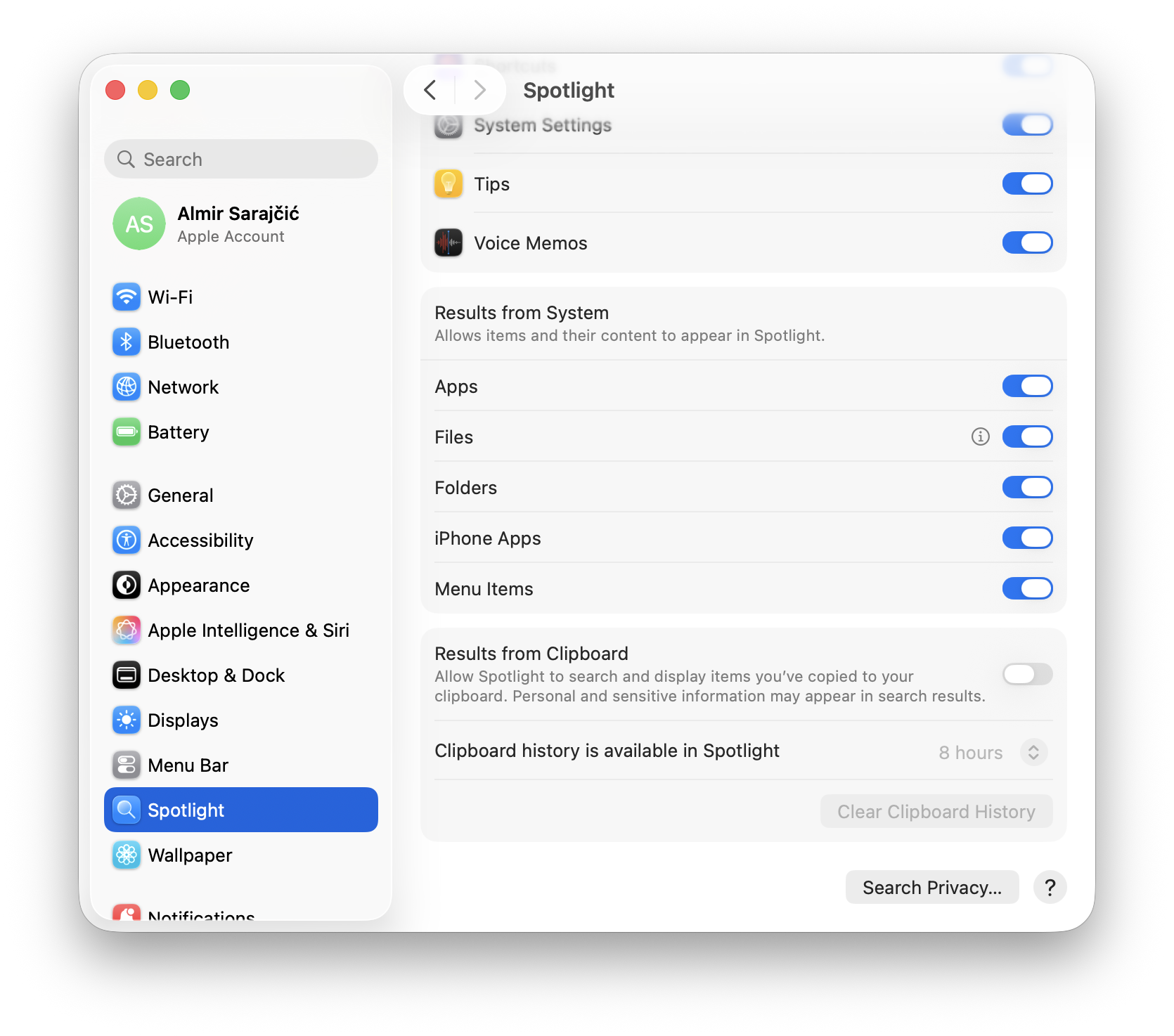
- Click +, or drag a folder into the list.
- Add the development, dependency or build-output directories you want excluded, then click Done.
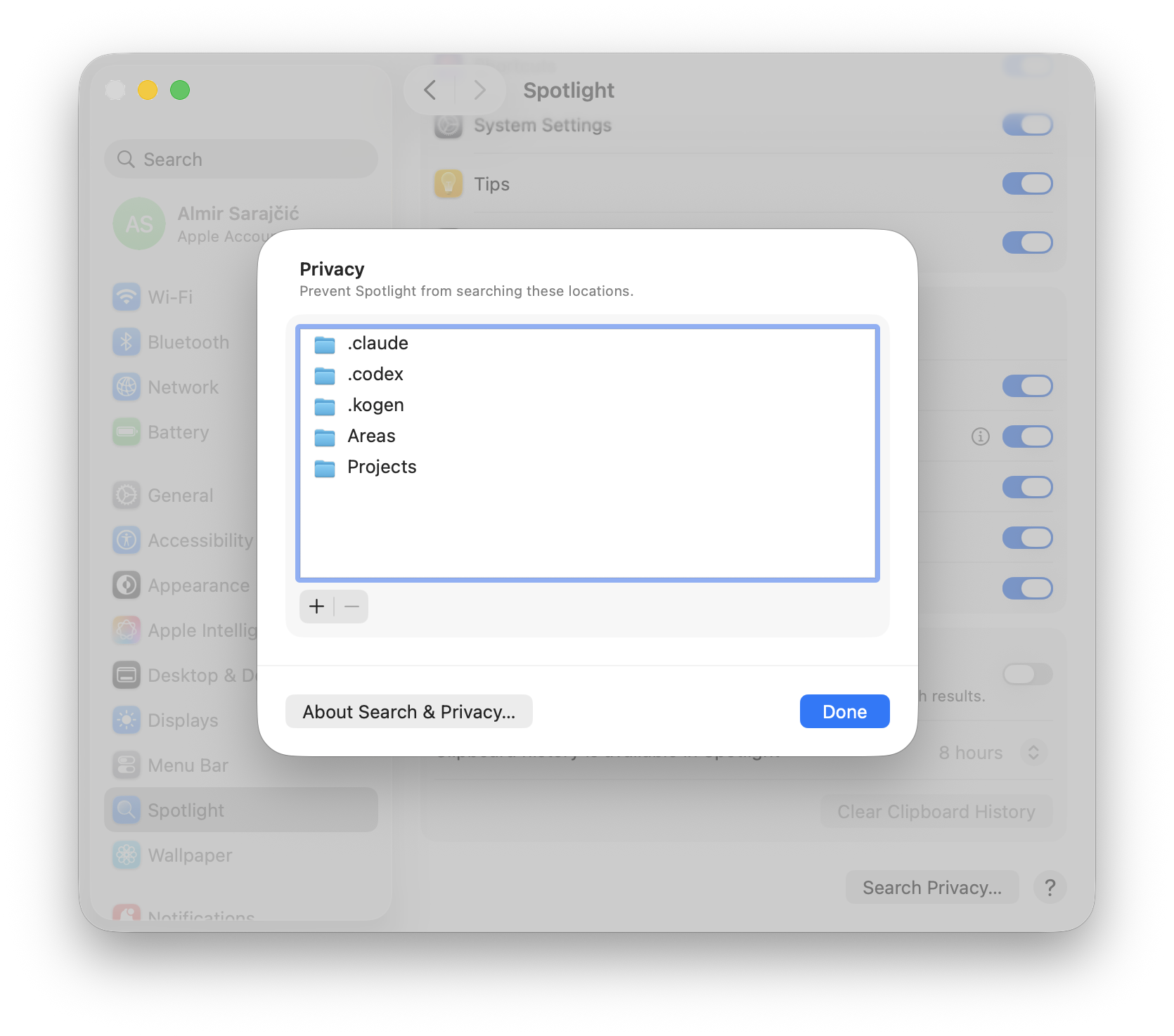
If you use Spotlight to find source files, leave your working directory searchable and exclude the dependencies and generated output.
Apple documents the exclusion steps here. Some macOS versions call the panel Spotlight Privacy.
One catch for Xcode users: Spotlight also helps locate .dSYM files for crash symbolication. Keep those files somewhere Spotlight can find them. Apple’s debug-symbol guide
File system events
My MacBook has 24 GiB of RAM. When it started using over 35 GiB of swap, fseventsd, the macOS process that tracks file changes, was using about 49 GiB of memory. Most of it was compressed.
I restarted fseventsd without rebooting the Mac. The new process started at about 4 MiB, and swap fell below 1 GiB. My build runner now checks its memory use before starting a build and can restart it under memory pressure. The builds create and delete a lot of temporary files. That might explain the growth.
If you keep disposable build caches on their own volume, you can turn off saved event logs for that volume with .fseventsd/no_log. I haven’t tried it on this workload. Apple’s instructions for turning off event logging
Check XProtect separately
During Kogen’s Go tests, XProtectService was one of the busiest processes. I moved the Go checks to Linux for a while. For the jobs I run over SSH on the Mac, I enabled Developer Tools for sshd-keygen-wrapper.
XProtect is macOS’s built-in malware protection. Apple documents checks when an app is first launched, changes on disk, or XProtect signatures are updated.
To find the permission:
- Open the Apple menu → System Settings.
- Select Privacy & Security in the sidebar.
- Scroll down the right-hand pane and click Developer Tools.
- Find the app that launches your development commands, such as Terminal or your IDE. Use + if it is missing, then enable its switch.
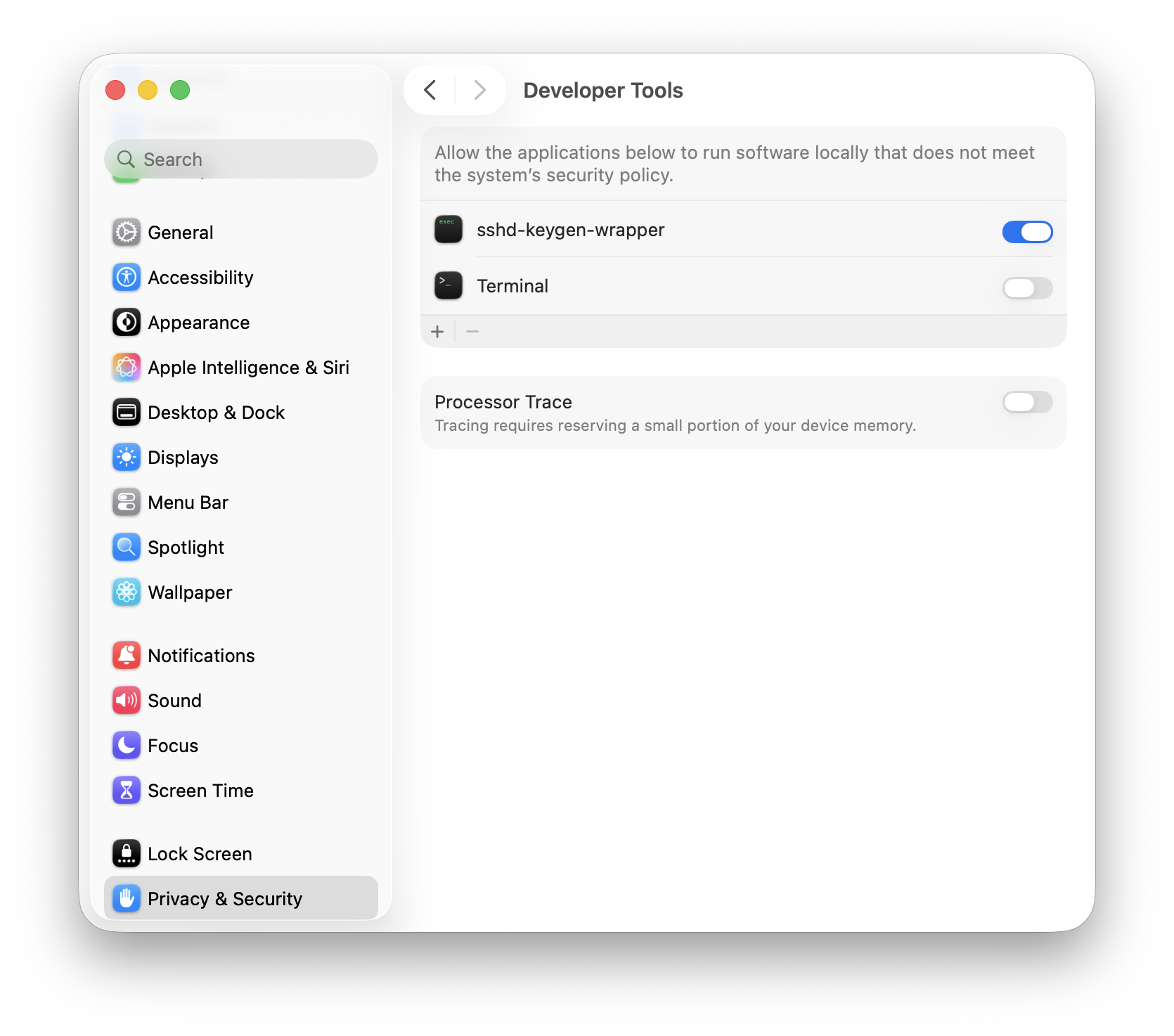
Apple describes this permission as allowing selected apps to run software that does not meet the normal system security policy. Enable it deliberately for trusted development tools.
If your builds run over SSH
Granting Terminal permission does not establish that an SSH-launched job has the same grant. For the macOS SSH launcher:
- In Developer Tools, click +.
- In the file picker, press Command–Shift–G to enter a path.
- Enter
/usr/libexec/sshd-keygen-wrapperand press Return.
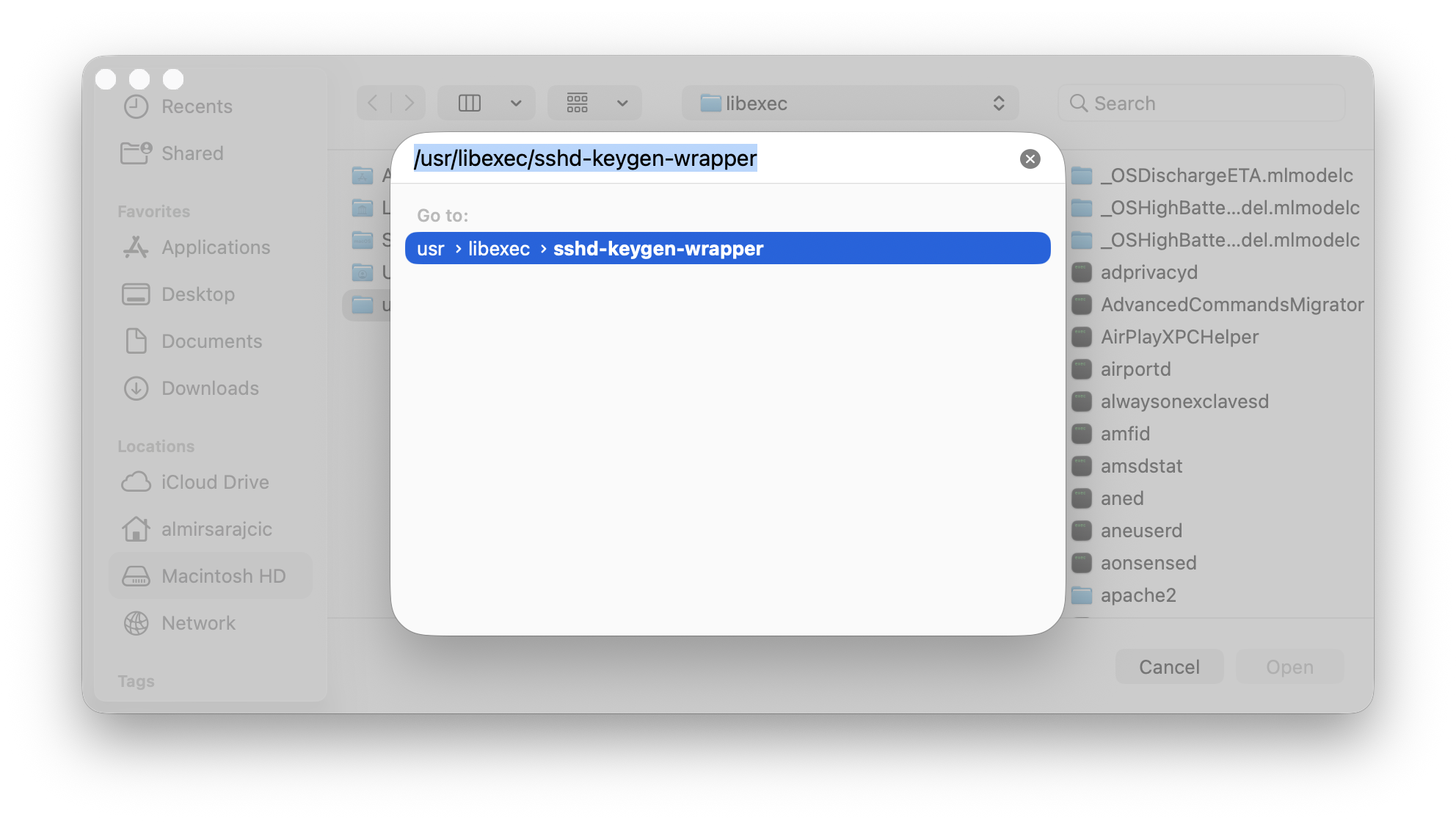
- Select the executable and click Open.
- Back in Developer Tools, enable sshd-keygen-wrapper, as shown in the settings screenshot above.
XProtect can still run after you enable Developer Tools.
Choose when Xcode updates
If you installed Xcode through the App Store, you can update it manually between builds.
- Open the App Store.
- From the menu bar, choose App Store → Settings.
- Turn off Automatic Updates.
- Install pending updates manually from the App Store’s Updates page when your builds have finished.
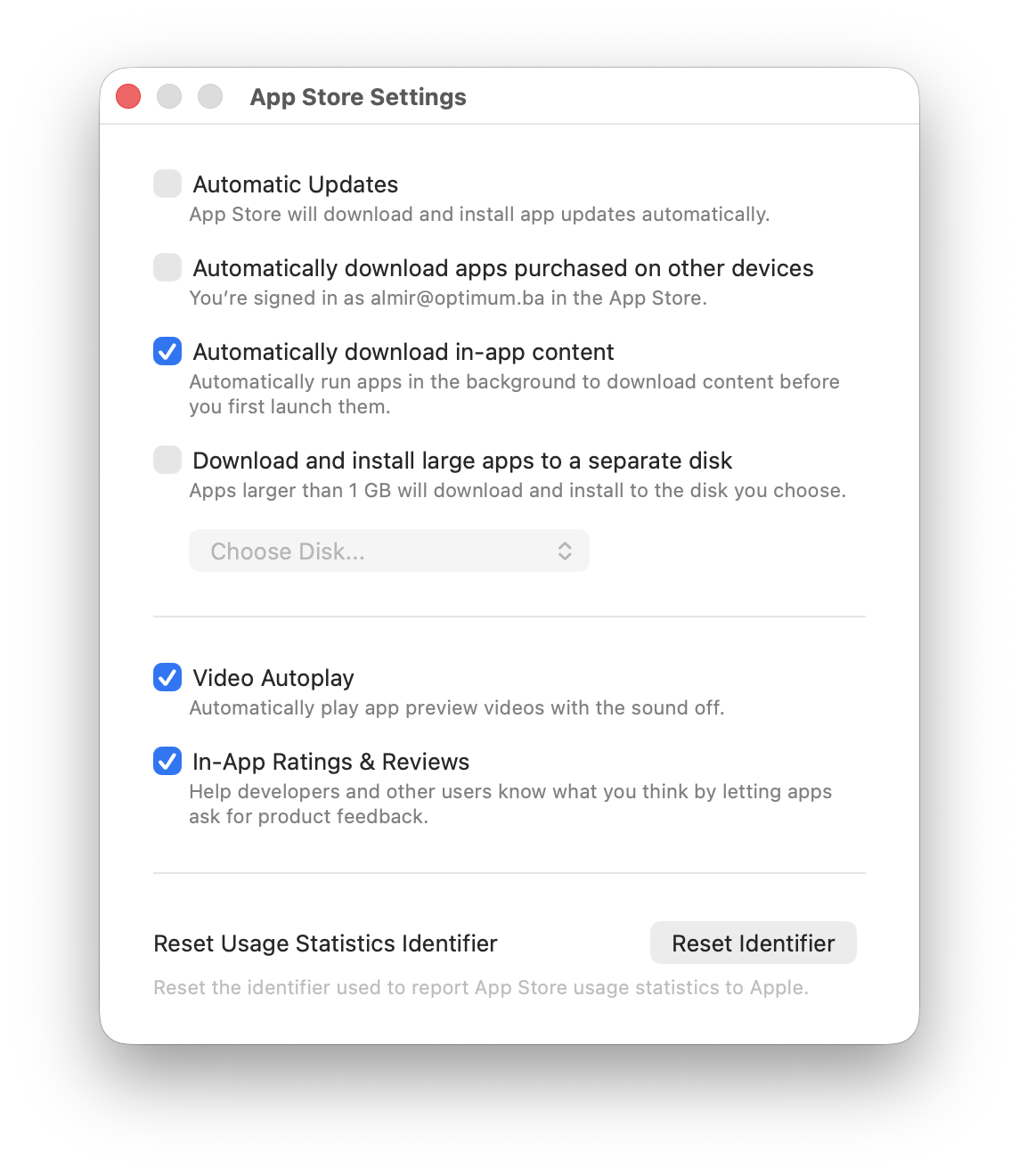
Apple documents the app-update controls here. This setting affects all App Store apps.
I leave macOS background security updates enabled in Software Update.
← All notes